

Adding shapes
Drag a shape from the right-hand panel onto the workplane, or onto any face of another shape: it stands on that face, tilted to match.
When to use it
To build on top of or against other parts: drop a shape onto a face and it stands on that face.
How to use it
- Click a shape then click the workplane, or drag it straight in.
- Pick a category from the drop-down above the shapes for hardware, gears, symbols, letters and more.
Common problems
- My shape landed on top of another part.
- Shapes drop onto whatever is under the mouse. Select it and press D to drop it onto the workplane.
Learn it step by step
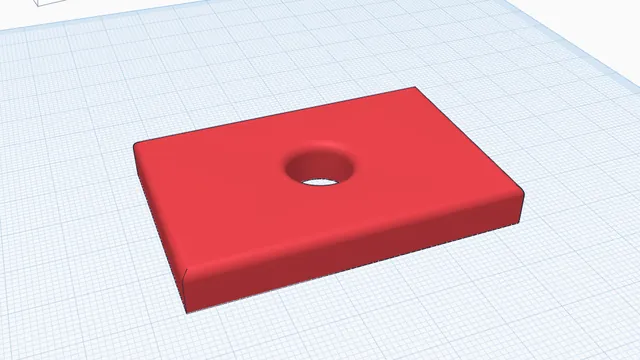 Your first printable modelBeginner · 12 min · From an empty workplane to a file your printer can print: a 60 × 40 mm tag with a hole and rounded edges.
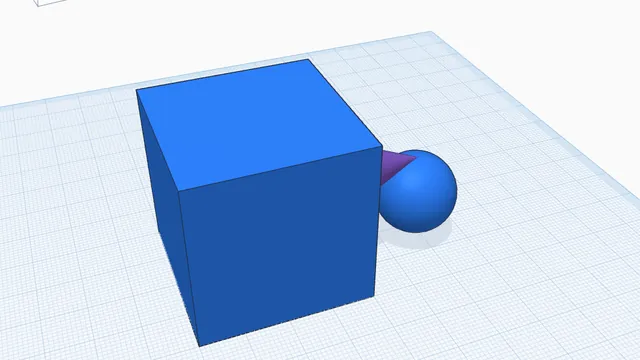 Build on facesBeginner · 4 min · Drop shapes onto the top or the side of other parts: they stand on that face, the right way up.
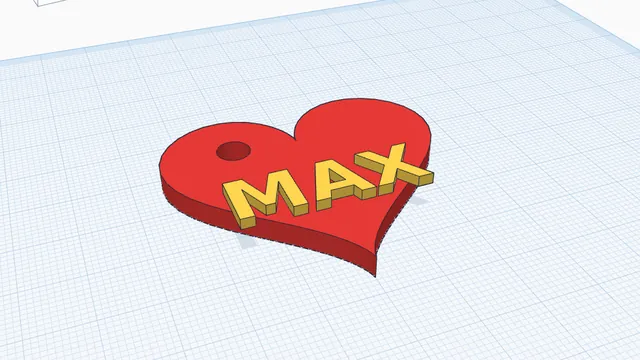 Your own keychainBeginner · 6 min · A keychain with your name on it, in two colours, ready to print: a perfect first project, for children and grown-ups.