

Sketch
A 2D drawing board. Draw with shapes, pen, splines, text and constrained lines, then extrude it up or revolve it into a round part. Draw on the ground, the front, the side, or on any face (move the workplane there first with W).
When to use it
For flat shapes that aren't in the shapes panel: brackets, plates with curved outlines, signs, gaskets, and the profiles for extrude, revolve, sweep and loft.
How to use it
- Pick where to draw with "Draw on" at the bottom: Ground, Front, Side, or Workplane. The other parts show as grey outlines to draw against (Show parts).
- Exact sizes: start a line, rectangle, circle or arc and just type the number (Tab for the next one, e.g. width Tab height), then Enter.
- Trim (X): click a piece of a line, arc or circle to cut it away up to where it crosses another line; they join there so the outline closes. Join and Close gaps finish the rest, and the badge says when the shape is closed.
- To lines turns rectangles, splines and paths into lines you can trim and join. The 3-point arc goes start, end, then a point it passes through.
- Rules tab: Horizontal, Vertical, Parallel, Square to, Same length, Touching, Same centre, Join points, On the middle, Mirror pair, Lock in place. Measure (D) sets an exact size. Blue lines can still move; black ones are set.
- Edit lines tab: Trim, Extend, Join ends, Close gaps, Round corner and Cut corner (click a corner), Offset (move to the side, click or type), Mirror (click the mirror line), Use part edge (click a grey outline). New lines snap to middles, onto lines and into line with other points (Ctrl: no snapping).
- Splines: in Edit nodes pick Corner, Smooth, Symmetric or Separate handles; Shift+click several points to move or change them together.
- Offset… gives every Offset Path option (in/out, corners, miter limit, several copies, rings) with a live preview. Arrows nudge: Alt 0.1 mm, Ctrl 0.01 mm.
Options
- Select (V)
- Click a shape to pick it, then drag it to move it, or drag the box handles round it to size or turn it. Shift+click picks more than one.
- Nodes (A)
- Nodes are the points a shape’s outline is made of (the corners, and the points along a curve). With Nodes on, drag a point to reshape the outline, click the line between two points to add one, and press Delete to take one away. On a curve, each point has handles that set how the line bends through it: Corner, Smooth, Symmetric or Separate.
- Rect, Ellipse, Polygon, Star, Heart
- Drag to draw. Hold Shift for a square or a circle. Their size, corner rounding and number of sides are in the panel on the right.
- Pen (P)
- Click for sharp corners, click and drag for smooth curves. Click the first point again to close the shape; press Enter (or double-click) to stop with an open line, for example a path for Sweep.
- Draw
- Freehand: drag to draw and the line is smoothed for you.
- Text
- Click and type. Change the font and size on the right.
- CAD tools: Line, Rect, Arc, Circle, Spline
- Lines and arcs that join at their ends and can be given exact sizes: type the number while drawing (Tab moves to the next number), or select a line and press D for a dimension. Constraints (horizontal, vertical, parallel, equal, tangent…) keep them that way when you change something else.
- Trim (X)
- Click a piece of a line, arc or circle to cut it away up to where it crosses another one. Join and Close gaps finish an outline; the badge says when it is closed.
- Closed shape or open line
- A closed shape (the line comes back to where it started) becomes a solid. An open line stays a thin line: use it as a path for Sweep or Pattern.
- Pathfinder
- Union merges the selected shapes, Subtract cuts the top ones out of the bottom one, Intersect keeps only the overlap, Exclude keeps everything but the overlap.
- Outset / Inset
- Grows or shrinks the selected shape by the distance in the box: for a lip, a wall, or a printing gap round a part that has to fit inside.
- Hole shapes
- Set a shape to Hole in its panel and it cuts through the shapes under it.
- Done
- Makes the part. Its Height sets how thick it is; Revolve spins it round into a round part (a vase, a knob).
Good for: your own flat shapes that become parts: brackets, plates, signs, cookie cutters, gaskets, and the shape or the path for a Sweep, a Loft or a revolve.
Examples
- An L-shaped bracket outline with two screw holes, extruded 5 mm.
- A half outline of a vase, revolved into the vase.
Limits
- A sketch must form closed outlines to become a solid. Open lines are kept as paths (for Sweep and text on a curve).
Common problems
- Done made nothing.
- An outline isn't closed. Use Extend (W) or join the open ends so each outline closes.
- The hole in my shape came out solid.
- Draw the hole inside the outline: an outline inside another one is cut out.
Learn it step by step
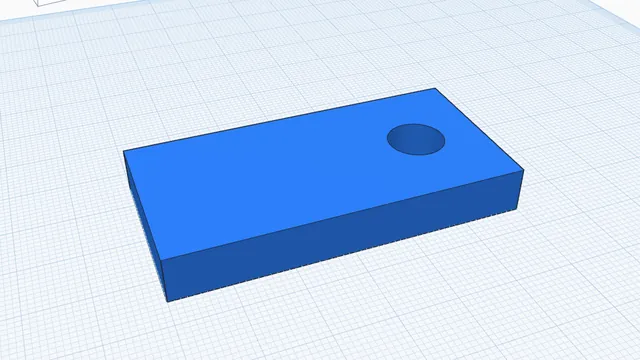 Your first sketchIntermediate · 7 min · Draw a flat outline with a hole in it, then turn it into a solid part: the way most custom parts start.Revolve a sketch into a round partIntermediate · 8 min · Draw half the outline of a round part against an axis, then spin it into a solid: knobs, feet, bottles, wheels, anything turned on a lathe.