

Sketch a 2D outline and extrude it into a 3D part
Draw a flat outline with a hole in it, then turn it into a solid part: the way most custom parts start.
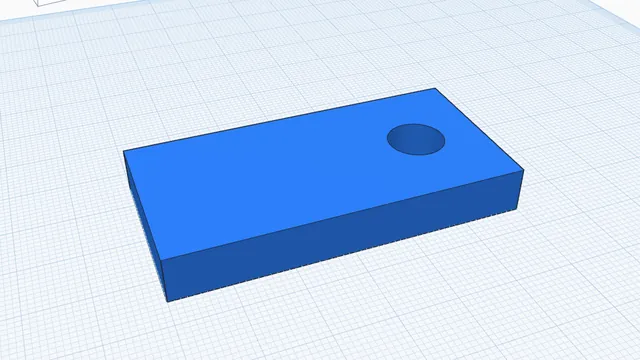
In the program, this lesson runs in a practice workspace beside your own design and checks each step as you go.
What you will make
A 60 × 30 mm plate, 5 mm thick, with a 10 mm hole, made from a sketch.
What you will learn
- Open the sketcher
- Draw a rectangle and a circle at exact sizes
- Make the circle a hole
- Turn the sketch into a part
- Change its thickness
Step by step
Open the sketcher
Press Sketch (K). The sketcher opens: a flat drawing board looking down on the workplane.
Sketches are for shapes the shapes panel doesn't have: brackets, plates, outlines of anything.
You should see: The sketcher fills the window.
Draw a rectangle
Pick Rect (R) on the left and drag out a rectangle. Then, in the panel on the right, set its size to 60 × 30 mm.
Draw roughly first, then type exact sizes: that is quicker than drawing exactly.
You should see: A rectangle 60 × 30 mm.
Tip: If the size boxes don't show, click the rectangle with Select (V) first.
Draw a circle
Pick Ellipse (E) and draw a circle inside the rectangle, near one end (hold Shift for a perfect circle). Make it 10 × 10 mm.
This will be a hole for a screw or a hook.
You should see: A 10 mm circle inside the rectangle.
Make it a hole
With the circle selected, choose Hole in the panel on the right.
In a sketch, shapes join together unless you say otherwise. A hole shape is cut out of the solid ones.
You should see: The circle is striped: it is a hole.
Make it a part
Press Done (top right). The sketch becomes a solid part, 5 mm thick, with the hole cut through.
The part remembers its sketch: double-click it any time to change the drawing.
You should see: A plate with a round hole, back in the 3D view.
Set its thickness
Click the plate and set its Height to 8 mm in the panel.
A sketch is extruded straight up: Height is its thickness.
You should see: An 8 mm thick plate with a hole.