

Move, size & lift
Drag an object to move it. White squares change its size, the black cone lifts it up or down, and the curved arrows rotate it.
When to use it
For quick changes by eye. For exact sizes, type them in the panel instead.
How to use it
- Click a white handle once: the sizes stay on screen so you can click a number and type an exact value.
- Drag a handle past the opposite side to flip the shape (e.g. drag the top handle below the base to grow downward).
- Hold Shift while resizing to keep proportions.
- Hold Alt while resizing to size it about its centre.
Common problems
- The part got out of proportion.
- Hold Shift while you drag a white square to keep the proportions (or tick Keep proportions in the panel). Hold Alt to size it from its centre, both sides at once.
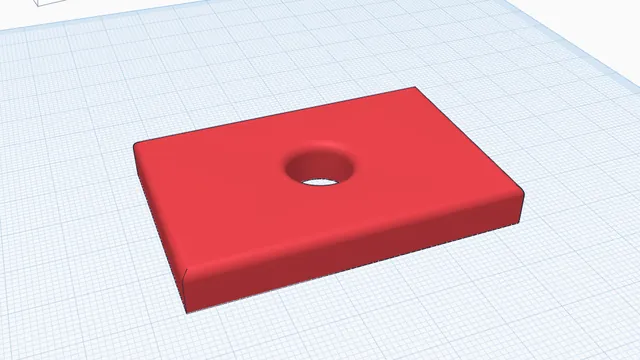 Your first printable modelBeginner · 12 min · From an empty workplane to a file your printer can print: a 60 × 40 mm tag with a hole and rounded edges.
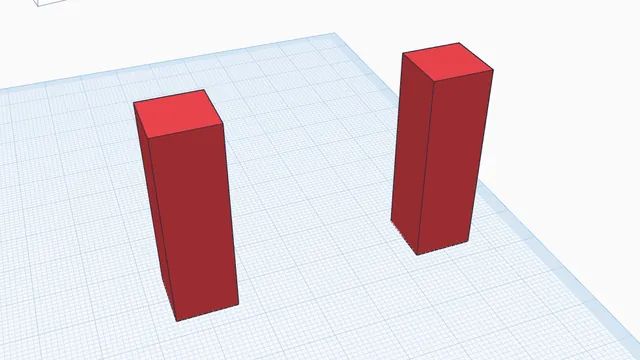 Move, turn and size by handBeginner · 5 min · Drag parts into place, lift them, turn them by exact steps, put them back down and copy them.