

Fillet & chamfer
Rounds or bevels edges. Click single edges, or click a flat face to do every edge around it at once, curved edges and holes included. Drag the size and watch it change live.
When to use it
To round (fillet) or bevel (chamfer) edges: for comfort, strength and a cleaner print. Round outside edges you hold; chamfer bottom edges so the first layer doesn't bulge (elephant's foot).
How to use it
- Click a face to pick its whole edge loop; click more faces or edges to add them.
- Switch between Round and Chamfer in the panel.
- Edit the radius any time afterwards in the properties panel.
Options
- Round or chamfer
- Round gives a curved edge; Chamfer cuts it off at an angle. On the bottom edges a chamfer prints better than a round (no overhang).
- Quick picks
- All sharp edges, Top edges, Bottom edges or Vertical edges pick a whole set at once. Only visible edges limits them to what you can see.
- Size
- How big the rounding is. Drag it and the preview shows the result; it can never be more than a wall can hold (thin walls get what fits).
- Flat parts done in one go
- On a flat extruded part (a sketch pulled up, text, a star) every edge is rounded in one smooth piece, with the corners blending into each other.
- Change it later
- Select the result and change the size, or turn the step off in the Design tree.
Good for: softer, stronger, nicer-to-hold parts: rounded edges on boxes, keychains and brackets; chamfers on bottom edges so they print without the first layer squashing out.
Examples
- 2 mm round on the top edges of a box so it is nice to hold.
- 0.5 mm chamfer round the bottom of a part that sits on the bed.
- Round the rim of a hole so a cable doesn't chafe.
Limits
- The size can't be more than the faces next to the edge allow: when it can't be made cleanly, the panel says why and gives the largest size that fits.
- A fillet is a step you can change later: select it and press Edit in its panel, or turn it off in the design tree.
Common problems
- Apply says it can't be made.
- Make the size smaller (the panel shows the largest that fits), or pick fewer edges at a time.
- Some edges I wanted weren't rounded.
- Clicking a flat face picks every edge round that face only. Click the other edges one by one too, or click their faces.
Learn it step by step
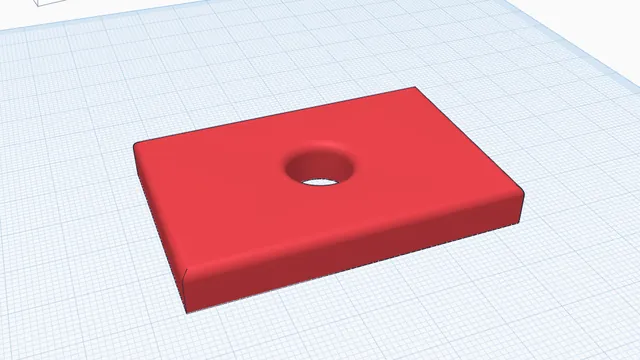 Your first printable modelBeginner · 12 min · From an empty workplane to a file your printer can print: a 60 × 40 mm tag with a hole and rounded edges.
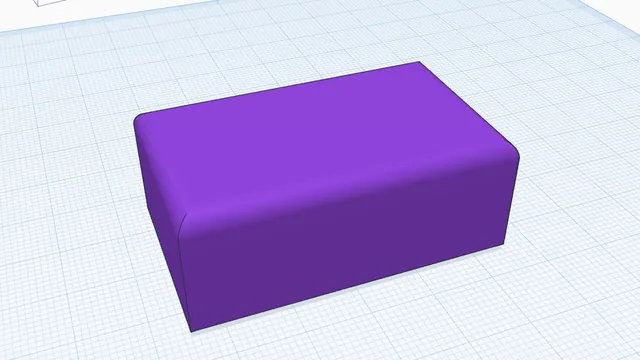 Round and bevel edgesIntermediate · 6 min · Round the top edges of a part and bevel its bottom edges, the two edge treatments that make prints look and feel finished.