

Align
Shows black dots around the selection. Hover a dot to preview, click to line everything up on that side or centre.
When to use it
To line parts up exactly: centred on each other, or flush along one side. Quicker and more exact than dragging.
How to use it
- Click one of the objects first to make it the one the others line up to.
- Right-click for "distribute evenly".
Options
- Line up to one part
- Click one of the selected parts first: the others line up to it and it stays put.
- Centring
- The middle dots centre the parts on each other, along that direction.
- Even spacing
- Right-click for Distribute evenly.
Good for: lining parts up exactly: centring a hole on a plate, putting parts level along one edge, spacing them evenly.
Examples
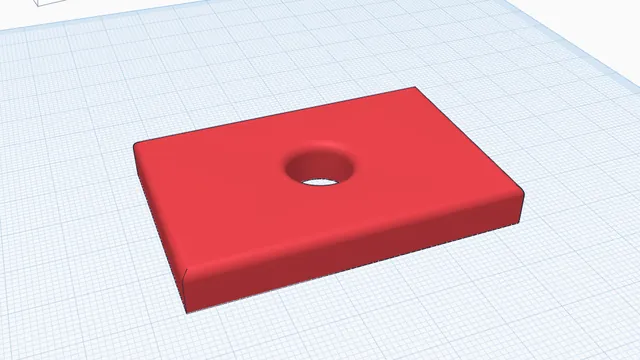
- A hole centred on a plate.
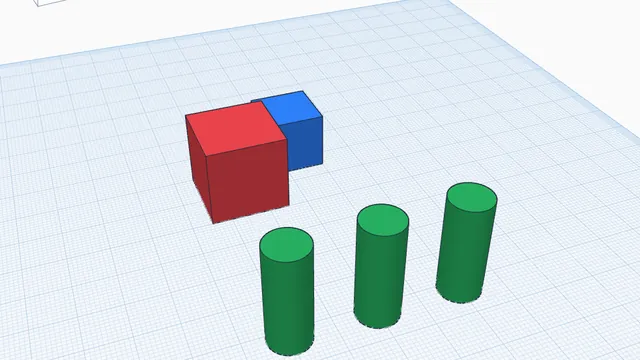
- Three posts lined up along their bottoms.
Limits
- Needs two or more parts selected. The first part you click stays put; the others move to it.
Common problems
- Nothing moves when I click a dot.
- Select two or more parts first, then press Align (L). Click once on the part that should stay where it is.
 Your first printable modelBeginner · 12 min · From an empty workplane to a file your printer can print: a 60 × 40 mm tag with a hole and rounded edges.
 Snap and line upBeginner · 4 min · Push parts flush together with smart snapping, then line them up exactly with Align.