

Snap and align 3D parts exactly
Push parts flush together with smart snapping, then line them up exactly with Align.
In the program, this lesson runs in a practice workspace beside your own design and checks each step as you go.
What you will make
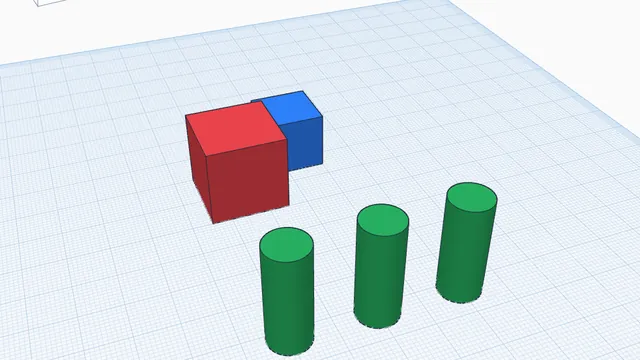
Two blocks pushed face to face, and three posts lined up along their fronts.
What you will learn
- Push parts flush with smart snapping
- Line parts up with Align
- Move freely with Ctrl
Step by step
Push flush
Drag the blue box towards the red one. As it touches, a pink Face to face guide shows: let go there.
Snapping puts faces exactly together, with no gap and no overlap: important for parts that must join.
You should see: The blue box touches the red box, face to face.
Tip: Snapping can be set at the bottom right (Snap). Hold Ctrl while you drag to move without it.
Line up the posts
Select the three green posts (drag a box round them), press Align (L), and click the dot that lines up their fronts (the side nearest you).
Align lines parts up exactly along one side or their centres, in one click.
You should see: The three posts stand in a straight line.
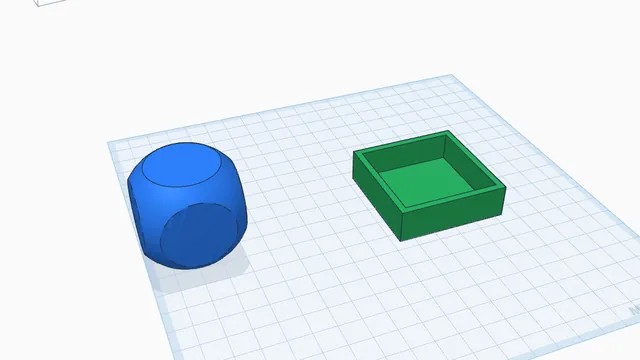 Holes, pockets and traysBeginner · 6 min · Use hole shapes to hollow out a tray with a floor, and Intersect to keep only where two parts overlap.