

How to hollow a 3D model with an even wall
Empty a solid part to an even 2 mm wall and open its top: a vase or a pot in one step.
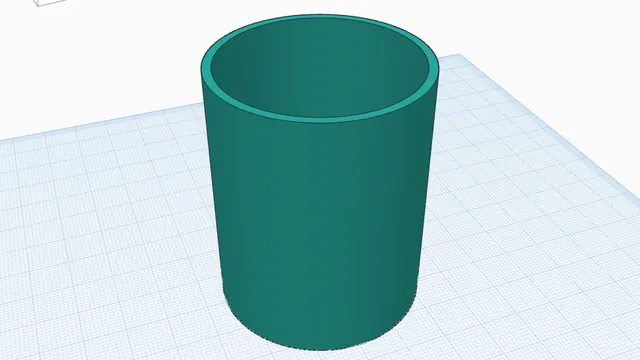
In the program, this lesson runs in a practice workspace beside your own design and checks each step as you go.
What you will make
An open-topped vase with 2 mm walls.
What you will learn
- Hollow a solid to a set wall thickness
- Choose how it opens
- Check the inside with Section
Step by step
Open Hollow
Select the cylinder and press Hollow.
Hollow keeps the outside exactly as it is and empties the inside to an even wall.
You should see: The Hollow panel is open.
Open the top
Set the wall to 2 mm, choose Cut open flat (the top is sliced off, leaving a clean rim) and press Hollow.
2 mm is five lines of a 0.4 mm nozzle: strong enough for a vase that holds water.
You should see: An open vase, hollow inside.
Look inside
Press Section to cut the view in half, so you can see the even wall all the way down.
Section only changes the view, never your part.
You should see: The vase shown cut in half.
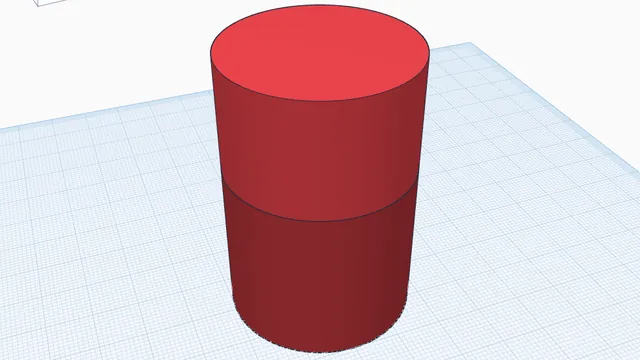 Split a part to printIntermediate · 4 min · Cut a tall part into two pieces that print without supports, with a peg so they line up.