

Parametric 3D design: change one number, update everything
Name a size once and use it in formulas, so a whole design resizes when you change one number.
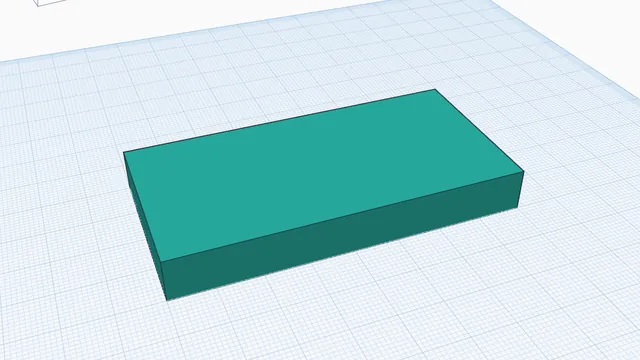
In the program, this lesson runs in a practice workspace beside your own design and checks each step as you go.
What you will make
A box whose length and width follow one parameter.
What you will learn
- Type a name into a size box to make a parameter
- Use a formula
- Change the parameter and watch the part follow
Step by step
Name a size
Click the box. Double-click its Length box, type width and press Enter.
A name you type becomes a parameter, holding the size the box had (50). The box now follows it.
You should see: Length shows fx: it follows the parameter width.
Use a formula
Double-click the Width box and type width / 2.
Formulas use + − * / and brackets: the width is now always half the length.
You should see: The box is 50 × 25 mm.
Change it
Press Parameters (fx on the tool bar) and change width to 80.
Every size that uses width follows: here both the length and the width.
You should see: The box is 80 × 40 mm.
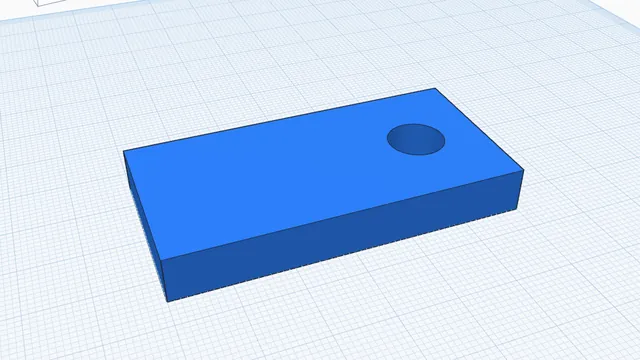 Your first sketchIntermediate · 7 min · Draw a flat outline with a hole in it, then turn it into a solid part: the way most custom parts start.